
 Twitch
 YouTube
 Kick
Kick
 VK Live
08.10.2026
81Twitch panels: clearly organize your channel information and useful links
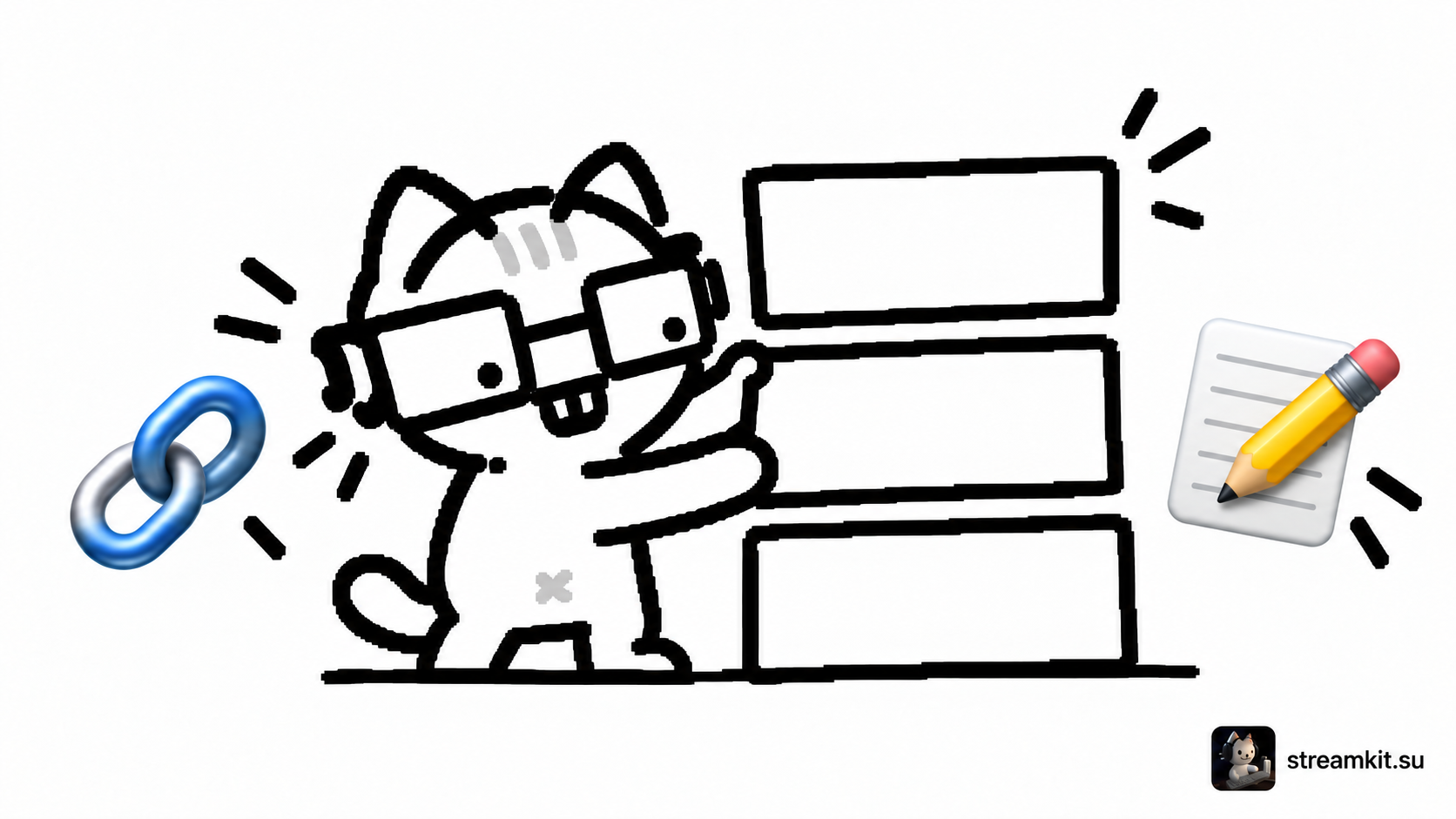
Panels below the stream help a new viewer quickly understand who you are, when to watch, and where useful links are located. Their value lies in clear information, not the number of similar decorative images.
Build a minimal set
- About the channel: the streams you host and what viewers can expect in your next broadcast.
- Schedule: usual days, times, and time zone, or a link to your current schedule.
- Links: your active pages and a way to contact you for business inquiries.
Add a separate rules or equipment panel only if it answers recurring questions. Do not publish your home address, personal phone number, or information viewers do not need to participate in the channel.
Add panels on your channel page
Sign in to your Twitch account, open your own channel, and go to About. Find the Edit Panels toggle, enable editing, and add a panel. Labels may appear in your interface language.
Enter a heading and description. If you use an image, add its destination link if needed, then save the panel. Turn off editing mode and open the channel as a viewer: the setup form and finished section look different.
Do not hide important text in an image
An image can act as a heading, but repeat streaming times and the purpose of links as ordinary text. This makes information easier to read on a small screen and with screen readers. “My socials” is less useful than the platform name and a short explanation of what you post there.
Check links and updates
Click every link in the finished panels. Confirm it opens the correct page, does not unexpectedly require access, and does not lead to an old account. View your channel on a phone: tiny lettering in an image may become unreadable.
Before changing formats, update the description and schedule. If a panel is outdated, removing it is better than leaving viewers with conflicting promises.