
 Twitch
 YouTube
 Kick
Kick
 VK Live
All posts
09.10.2026
39Instant replay in Streamlabs: show a great moment live
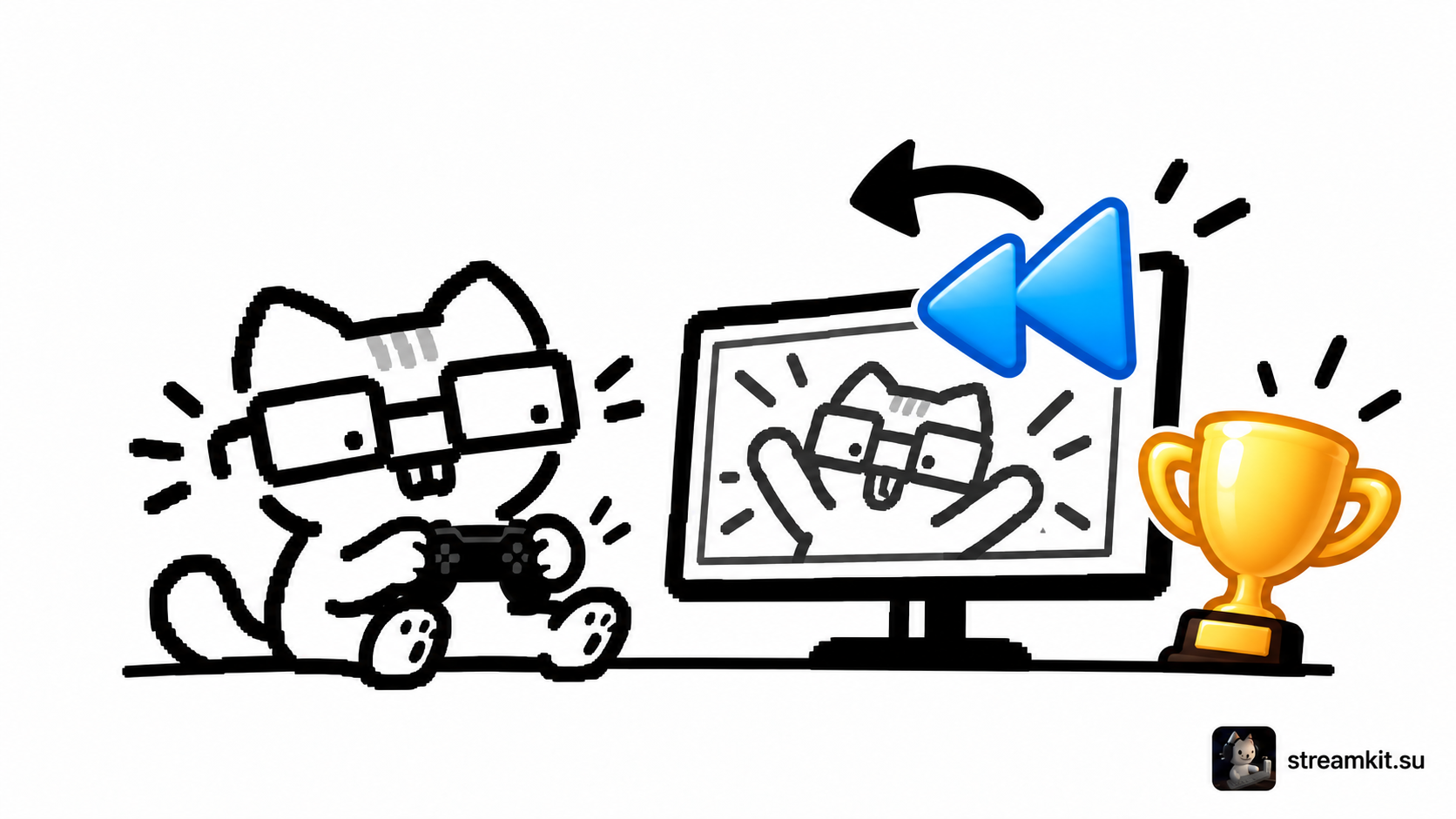
Replay Buffer temporarily stores the last seconds of video. You can play a saved segment in a scene so viewers can watch a win or funny moment again.
Set up the buffer and source
This example saves the last 20 seconds. A longer buffer needs more memory, so start with a short segment.
- In Settings → Output, enable Enable Replay Buffer and set the duration to 20 seconds.
- In General, enable Automatically start replay buffer when streaming if you want it to start with the broadcast.
- Add an Instant Replay source to the scene and position it so it does not cover important gameplay.
- In Hotkeys, assign a save-replay key and, if needed, keys to show, hide, or switch to the replay scene.
Do not miss the moment
The buffer must be running before the event. Starting it after a win will not recover the earlier action. Choose a shortcut that does not conflict with game controls.
Check the replay audio. It should not overwhelm your current commentary or unexpectedly repeat a private conversation.
Practice before streaming
- Press Start Replay Buffer manually.
- Play a short segment, save a replay, and check playback.
- Check hiding the source and returning to the main scene.
Decide when you will use replays, such as after a round ends. This lets you show a moment without changing the screen during the next important action.