
 Twitch
 YouTube
 Kick
Kick
 VK Live
09.10.2026
35PlayStation 5 through a capture card: connect an HD60 X to OBS
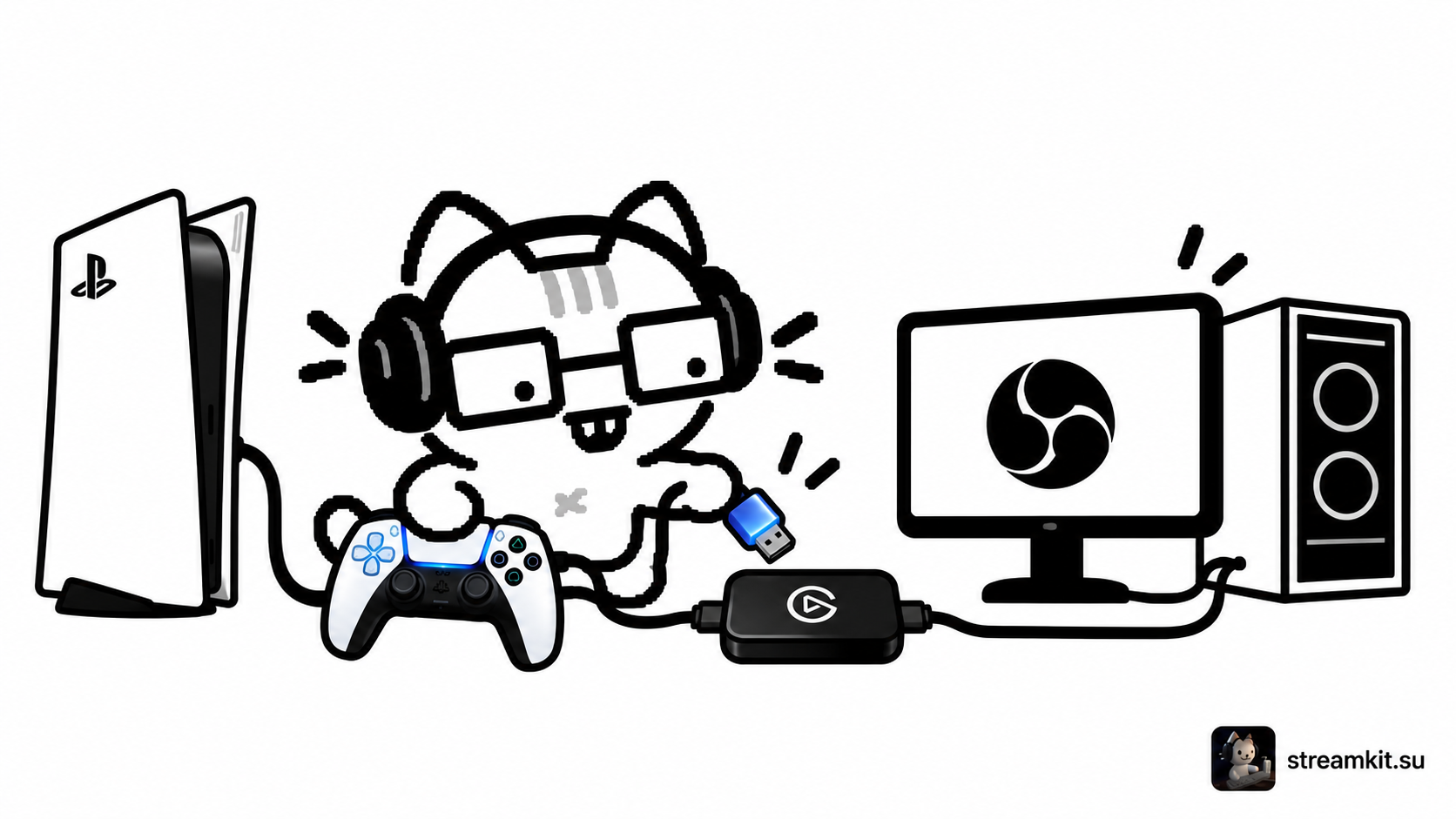
A capture card sends console video to the computer while the TV remains your gameplay display. This example uses Elgato HD60 X: do not confuse its HDMI input with its HDMI output.
Connect the devices
First connect the PS5 directly to the TV. In system settings, disable Enable HDCP to capture gameplay. Protected signals cannot be captured; media apps may require HDCP to be enabled again.
- Connect the PS5 HDMI output to the card’s HDMI In.
- Connect the card’s HDMI Out to the TV or monitor.
- Connect the card to the computer through USB 3.x.
- In OBS, add Video Capture Device, select HD60 X, and check picture and audio.
If picture or audio is missing
Check HDMI directions, device power, and the USB connection. For a black screen, verify that HDCP is disabled. If video has no sound, check the card’s audio device in OBS: setup may differ by operating system.
Analog Audio In is not a microphone input. It is a line input for the appropriate audio signal.
Before streaming
- The TV displays the game.
- OBS has video and game audio is audible in a recording.
- Camera and microphone are added separately without duplicates.
Make a test recording of real gameplay. Check voice and video synchronization before streaming, especially when using a camera and additional audio devices.