
 Twitch
 YouTube
 Kick
Kick
 VK Live
09.10.2026
38OBS Studio Mode: prepare a scene without showing edits to viewers
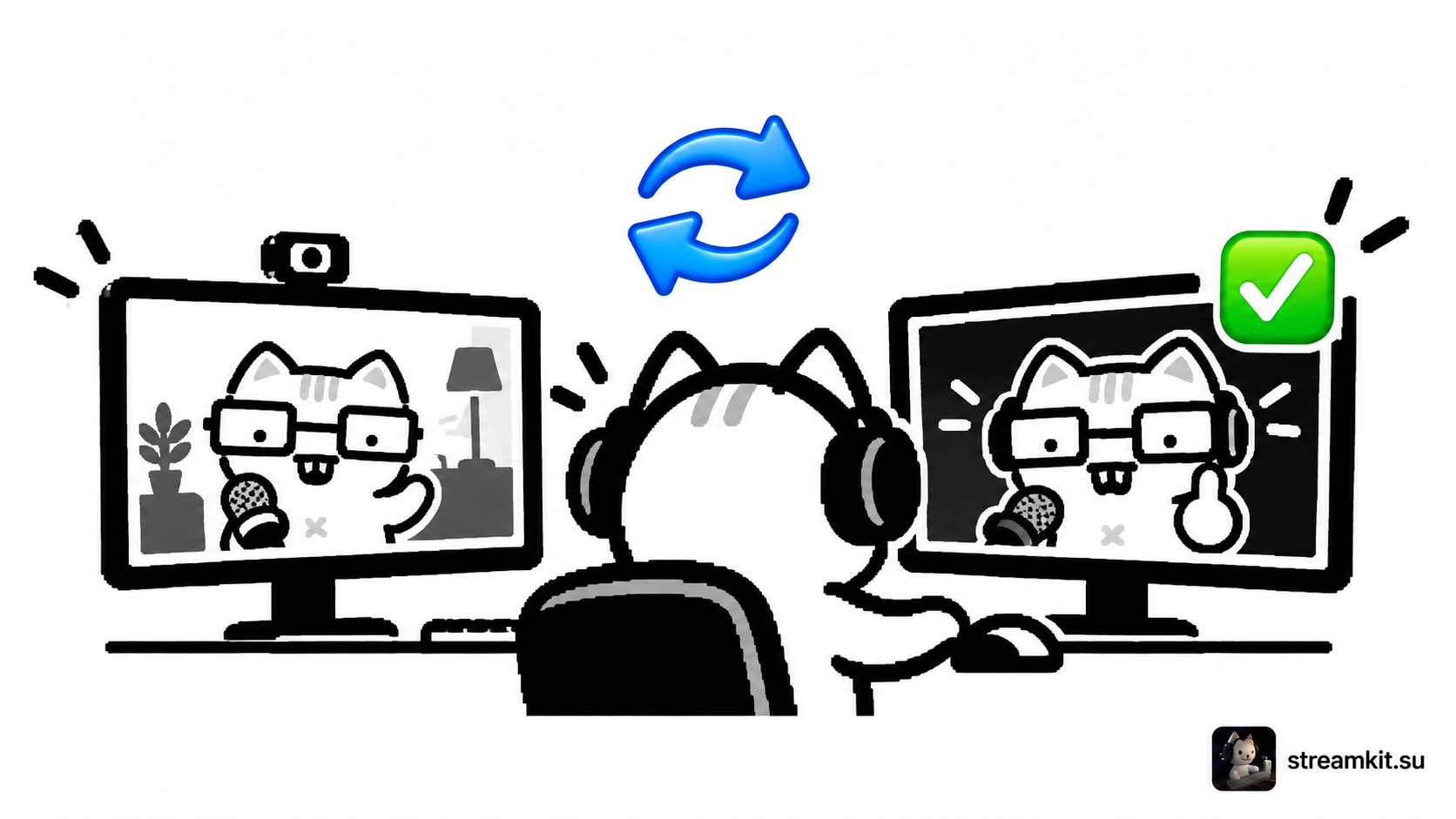
Need to adjust your webcam or prepare a break screen while streaming? Studio Mode separates your working preview from the picture viewers see. You can check changes before switching.
Separate preparation from the live feed
Enable Studio Mode in OBS Controls. Preview is on the left and Program is on the right. The right window shows the current picture for viewers.
- Select the scene you want in Preview, such as a break screen with your camera.
- Adjust source placement and check that the camera does not cover important elements.
- Choose a transition and its duration. A simple switch is enough for the first test.
- Press Transition when the scene is ready. Confirm that the intended picture appears in Program.
What can still change on air
The preview does not create an independent copy of every source. If a source is used in both scenes, changing its shared properties may affect the current broadcast. Check camera settings and filters particularly carefully.
Studio Mode does not mute your microphone. Audio may continue going live while you prepare another scene.
Rehearse the switch
- Start a local recording and select a new scene in Preview: the current screen should remain in Program.
- Perform the transition and review the recording: check framing and switching duration.
- Return to the game scene and check audio on both screens.
Prepare separate scenes for gaming, talking, and breaks. Before going live, walk through the entire switching sequence once so you are not hunting for buttons at an awkward moment.