
 Twitch
 YouTube
 Kick
Kick
 VK Live
09.10.2026
37Separate audio tracks in OBS: voice, game, and Discord for editing
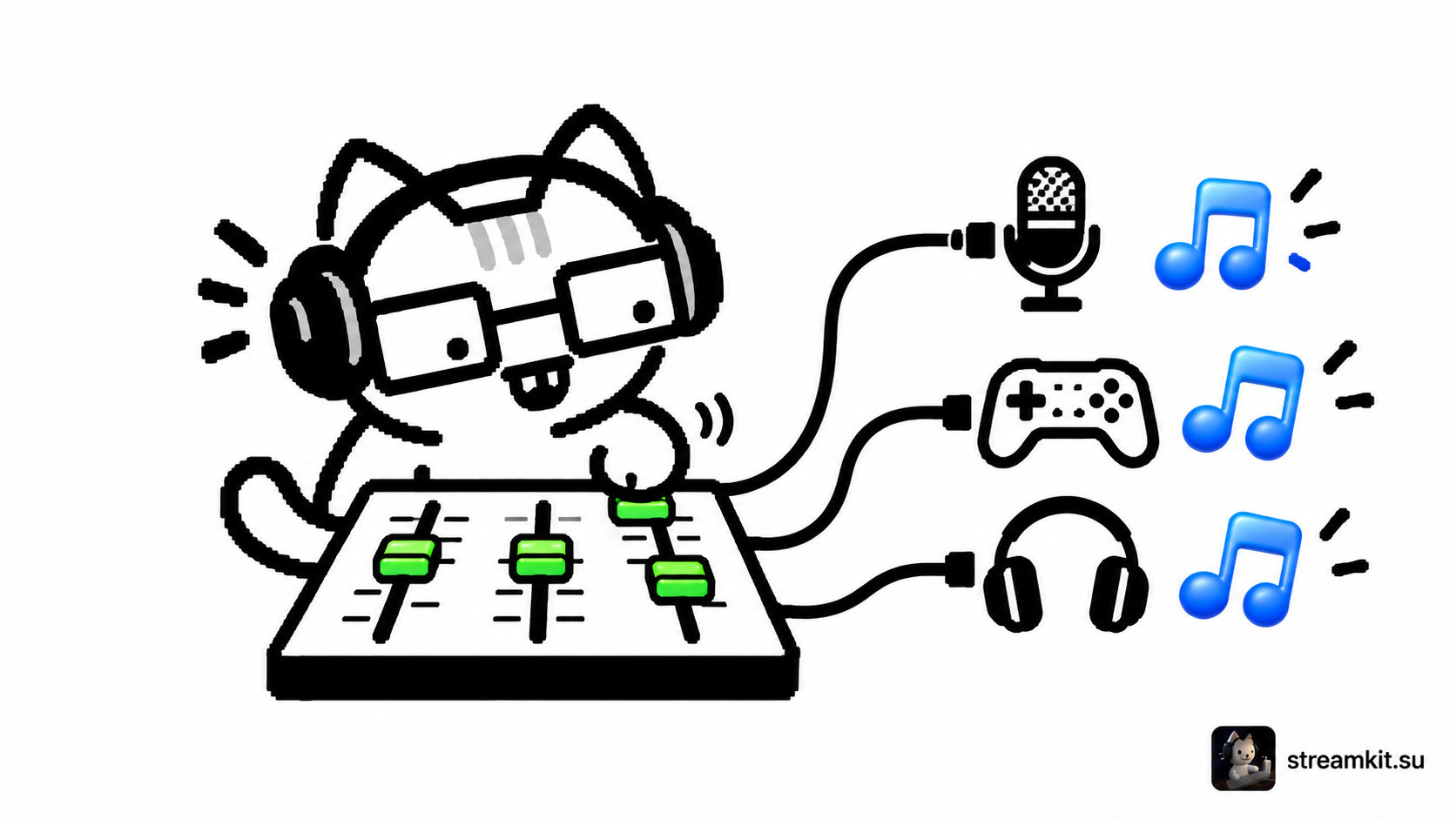
When voice and game audio are recorded together, adjusting their balance afterward is difficult. Separate tracks let you process each source independently while keeping a full mix for normal playback.
Set up recording
Prepare separate microphone, game, and voice-chat sources. If Discord and the game are already mixed in Desktop Audio, assigning tracks will not separate them again.
- In Settings → Output, enable Advanced and open Recording.
- Choose a format supporting multiple tracks, such as MKV, and enable the required Audio Tracks.
- In Advanced Audio Properties, assign every source to track 1 for the full mix.
- Also assign the microphone to track 2, the game to 3, and Discord to 4. Keep only the corresponding source on each separate track.
Keep recording and streaming distinct
For the live stream, use the full-mix track and check its selection in Streaming settings. Separate recording tracks do not automatically add missing audio to the broadcast.
A regular player may play only one track. To check separate sources, open the file in an editor supporting multitrack audio.
Check the result
- Record your speech, game audio, and a Discord message in turn.
- Confirm that track 1 contains everything and tracks 2, 3, and 4 contain only their assigned sources.
- Check your break scene and confirm that the necessary sources remain available when switching.
Save the tested configuration. Before an important stream, make another short recording: a new audio device or changed source can disrupt routing.