
 Twitch
 YouTube
 Kick
Kick
 VK Live
09.10.2026
39Microphone in only one ear: check audio channels in OBS
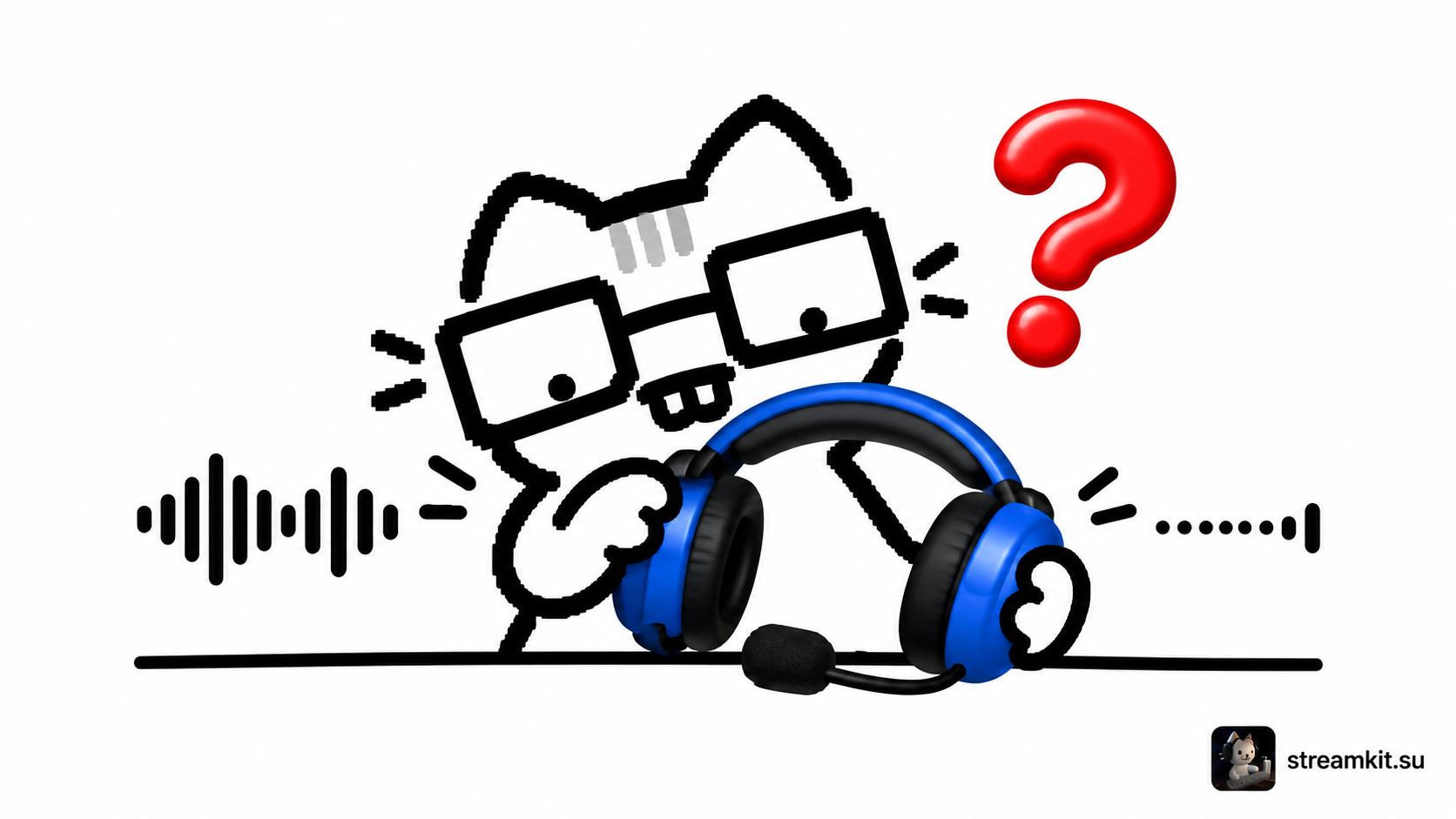
Two meter bars represent the left and right channels. If a signal reaches only one, viewers may hear your voice on just one side of their headphones.
Check the source
First record normal speech. If the problem exists only in your headphones, check their connection and playback balance before changing broadcast audio.
- Find the microphone source in Audio Mixer.
- Speak and check whether both meters of the stereo source move.
- Open Advanced Audio Properties and enable Downmix to Mono for that microphone.
- Record the same phrase again and listen to both channels.
Do not make all audio mono
Speech from one microphone generally does not need spatial separation. Stereo game audio or music can carry useful positioning. Change only the problematic source.
A mono source should be audible on both sides. One meter for a genuine mono source does not by itself indicate a fault.
Compare recording and monitoring
- Listen to the file with working headphones.
- Check the microphone in every scene you use.
- Confirm that you have not added another source for the same device.
If a channel is empty before OBS receives it, check the device, cable, and audio-interface settings. Do not compensate for a fault simply by increasing volume.