
 Twitch
 YouTube
 Kick
Kick
 VK Live
09.10.2026
39Moving OBS: profiles, scenes, and backups
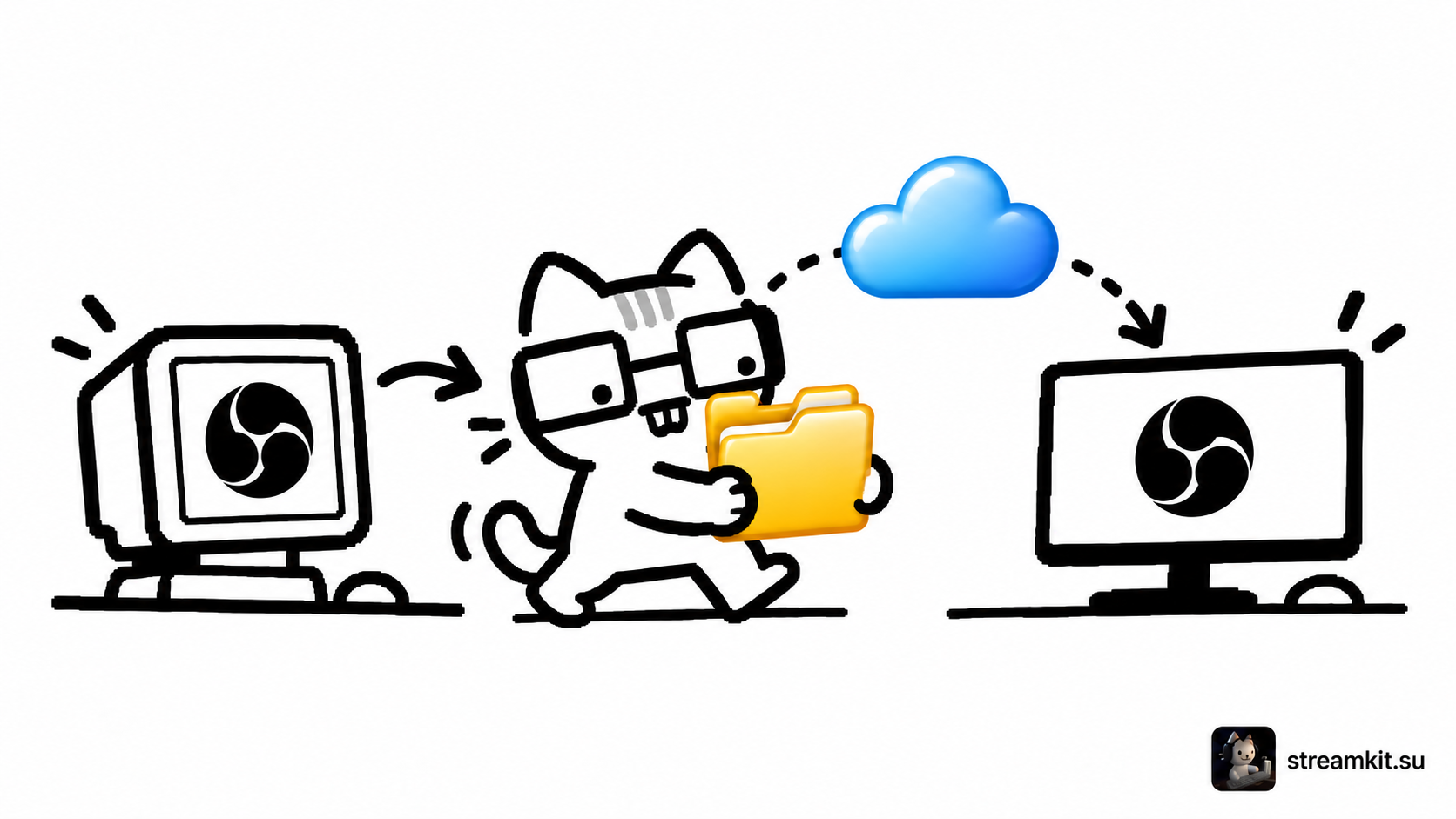
OBS profiles and scene collections store different parts of your configuration. One export is not enough to move both output settings and your usual set of sources.
Build a migration kit
A profile contains streaming, recording, and video settings. A scene collection stores scenes, sources, and global audio sources.
- In Profile, choose Export for the required profile.
- Export the active collection in Scene Collection.
- Separately copy local images, videos, and other source files.
- On the new computer, import the profile and collection, then correct file paths and select available cameras and microphones.
What to check after importing
Another computer may have different devices and encoders. Importing settings does not guarantee your previous microphone or hardware encoder is available. Check these items manually.
Exporting a scene does not copy its media files. Keep the kit in a separate folder and do not publish settings containing access keys.
Run a check
- Open every scene and check images and videos.
- Record voice, gameplay, and scene changes.
- Check connection and output settings before starting a real broadcast.
Before major OBS changes, make a new backup while retaining the previous working version. A clearly named folder with a date will help you find the right kit.