
 Twitch
 YouTube
 Kick
Kick
 VK Live
09.10.2026
39Application audio in OBS: capture a game without the whole desktop
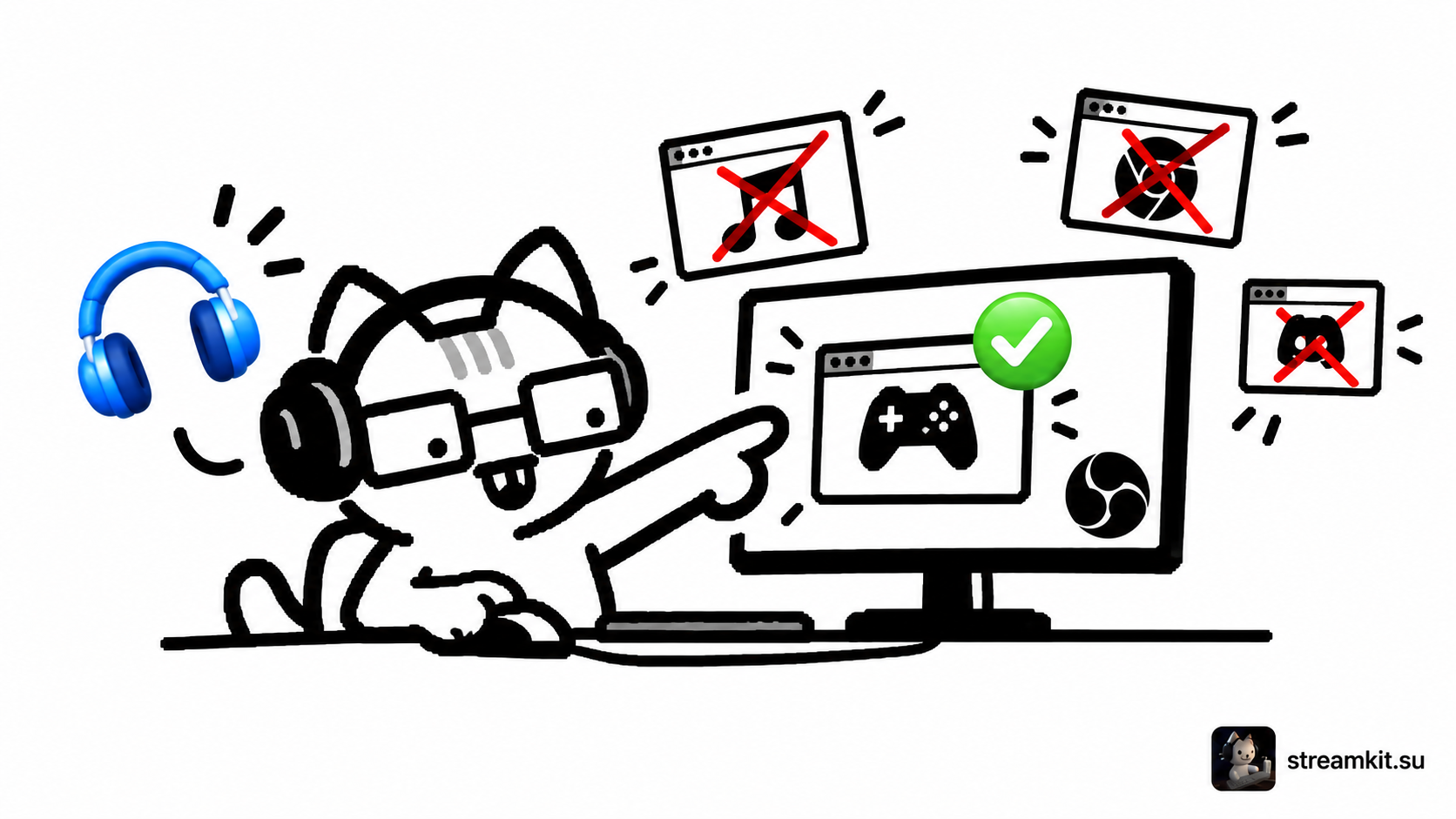
Application capture lets you stream game audio without including other programs. It is useful when your browser and voice chat need independent audio.
Add the required source
This method is for Windows 10 version 2004 or later or Windows 11. Application Audio Capture arrived in OBS 28; OBS 30.1 also offers audio capture in Game Capture and Window Capture sources.
- Launch the game and wait for its window to appear.
- In Sources, add Application Audio Capture and select the required window.
- Disable Desktop Audio in Settings → Audio if it captures the same sound again.
- Create a separate source for another application and adjust its volume in the mixer.
If sound disappears or doubles
Check the selected window after restarting the game. Programs may change their processes and window names. If a capture method does not work with the application, try another available method and check a recording.
Each sound should enter the mix once. Do not keep multiple sources capturing the same application.
Check isolation
- Record the game and listen to the file.
- Play audio in another application: it should not appear without its own source.
- Check game restarts and scene changes.
Application capture separates audio but does not automatically make the selected content safe. Confirm that this application is appropriate to show and hear on stream.